How to Forward Calls: iPhone & Android Settings Guide
Call forwarding is a simple feature that often trips people up because the steps and codes differ between iPhone, Samsung, and individual carriers. This guide covers the exact settings for both platforms, explains the universal star codes, and tells you what to check when calls just won’t divert.
Call forwarding activation (universal): *72 + number + Send covers most networks ·
Call forwarding deactivation (universal): *73 works on many carriers ·
iPhone toggle location: Settings > Phone > Call Forwarding ·
Samsung toggle location: Phone app > three-dot menu > Settings > Call Forwarding ·
Conditional call forwarding code (unconditional): *21*number# on GSM networks
Quick snapshot
- iPhone has Call Forwarding under Settings > Phone (Apple Support (official iPhone documentation))
- Samsung (Android) has Call Forwarding under Phone app > Settings (Ringflow (telecom blog))
- *73 deactivates call forwarding on many carriers (Asurion (tech support provider))
- Whether *72 works to activate on all carriers (Asurion (tech support provider))
- Whether *62* works universally for conditional call forwarding (BubblyPhone (GSM code reference))
- Specific carrier restrictions for call forwarding (ReadyTo.Talk (telecom resource))
- 2010s: Smartphone call forwarding settings become standard in iOS and Android (Asurion (tech support provider))
- 2024-2025: Apple and Samsung continue to use dedicated Call Forwarding menus in their phone apps (Apple Support (official iPhone documentation))
- Expect more unified carrier-agnostic forwarding menus as smartphone OSes evolve (Safina (call forwarding guide))
The table below summarizes the key facts and code differences you’ll need to know.
| Label | Value |
|---|---|
| iPhone call forwarding toggle | Settings > Phone > Call Forwarding (Apple Support) |
| Samsung call forwarding menu | Phone app > three-dot menu > Settings > Call Forwarding (Ringflow) |
| Universal activation code (typical) | *72 (Asurion) |
| Universal deactivation code (typical) | *73 (Asurion) |
| Conditional call forwarding code | *21*number# on GSM (BubblyPhone) |
How do I activate call forwarding?
Using the phone dial pad codes
The fastest way to set up forwarding—especially when the on-screen menu isn’t available—is to dial a star code. On many carriers, the universal unconditional forwarding code is *72 followed by the destination number and the Send key. For example, dial *721234567890# and press Send. This works on Verizon and several other US networks, though AT&T and T-Mobile often use *21*number# instead (Asurion (tech support provider)). Conditional codes exist for busy (*67*number#), unanswered (*61*number#), and unreachable (*62*number#) situations.
You can check the status of any forwarding by dialing *#21# (all) or *#61# (on no answer). To turn off all forwarding instantly, use the master GSM code ##002# and press Send (BubblyPhone (GSM code reference)).
Star codes are fast but carrier-specific—using the wrong one is the most common reason call forwarding appears not to work (Asurion). Always check your carrier’s exact code before dialing.
Using the phone settings menu
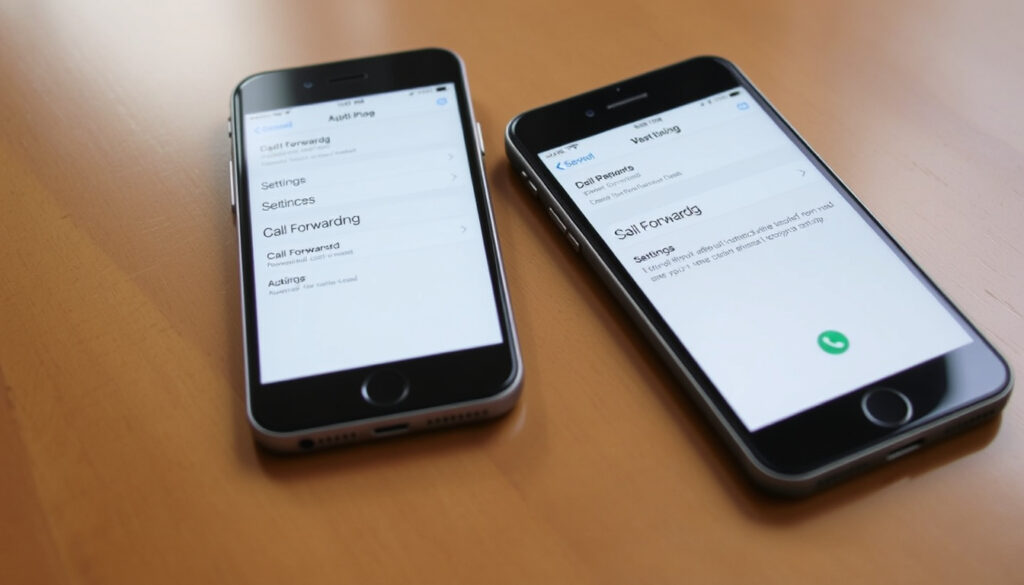
If you prefer a visual interface, most smartphones offer a toggle inside the Phone settings. On iPhone, go to Settings > Phone > Call Forwarding and flip the switch on. Add the forwarding number, including area code (Apple Support (official iPhone documentation)). On Samsung, open the Phone app, tap the three-dot menu, choose Settings > Call Forwarding, then pick the forwarding type and enter the number (Ringflow (telecom blog)).
How do I forward incoming calls to another number?
When you set up call forwarding, you need to enter a full number—including the area code and, for international destinations, the country code. Here’s how to do it for different types of destinations.
Forwarding to a mobile number
Enter the 10-digit mobile number (or 11 with the leading 1 for US/Canada) after the activation code or in the settings field. On iPhone, after toggling on Call Forwarding, you’ll see a number entry field—type the mobile number and tap Back (Apple Support). On Samsung, once you choose a forwarding condition, you’ll be prompted for the number.
Forwarding to a landline number
The same process applies for landlines—just include the area code. Some carriers require the full number with international prefix even for domestic landlines. If you’re forwarding from a business line to a desk phone, test the number first by calling it from another device (Apple Support).
Forwarding to an international number (check carrier rates)
Forwarding overseas works the same way, but you’ll need the country code (e.g., +44 for the UK). Important: international forwarding charges apply at your carrier’s roaming or calling rate, which can be steep. Check with your provider before enabling (Ringflow (telecom blog)).
The destination number must be valid and reachable—entering a wrong digit will send calls to a dead end. Always double-check the number after activation by making a test call from another phone.
How do I turn on call forwarding on my phone?
Turning on call forwarding can be done through settings or codes. Here are the exact steps for the two most common platforms.
Turn on call forwarding on iPhone
- Open Settings and tap Phone.
- Select Call Forwarding and toggle the switch on.
- Enter the number you want calls forwarded to, then tap the Back button to save (Apple Support (official iPhone documentation)).
Turn on call forwarding on Samsung/Android
- Open the Phone app and tap the three-dot menu (top-right or bottom-right).
- Go to Settings > Call Forwarding.
- Select the line (SIM1 or SIM2 for dual-SIM devices).
- Pick a forwarding condition (always, when busy, when unanswered, when unreachable) and enter the destination number (Ringflow (telecom blog)).
Some carriers may require you to use a star code instead of the menu if the menu option is absent—this is more common on older Android phones or CDMA devices (Asurion (tech support provider)).
Why won’t my phone divert?
When call forwarding doesn’t work, three categories cause most failures.
Carrier restrictions
Not all carriers support call forwarding, and some require a specific plan or fee. On US Cellular, for example, older CDMA iPhones may lack the forwarding menu entirely and must rely on star codes. Always verify with your carrier first (Asurion (tech support provider)).
Network issues
Airplane mode, weak signal, or being outside the coverage area will block the forwarding setup command. Ensure you have a stable connection before trying to activate (Asurion (tech support provider)).
Incorrect settings
Double-check the forwarding number—missing digits, wrong area code, or extra spaces are common errors. Also ensure you’ve saved the setting after entering the number. On iPhone, a checkmark or back arrow means it’s saved; on Samsung, you’ll see the forwarding type listed as active (Apple Support).
The most common reason call forwarding fails is using a carrier code that doesn’t match your network. AT&T and T-Mobile use *21*number#, while Verizon uses *72*number#. Mixing them up will produce no effect.
How do I divert my husband’s call to my phone Samsung?
If you want incoming calls destined for your husband’s number to ring on your Samsung phone, you need to set up call forwarding on his line—either from his phone or via carrier code. Here’s how to do it on his Samsung.
Accessing call settings on Samsung
- On his Samsung, open the Phone app.
- Tap the three-dot menu and go to Settings > Call Forwarding.
- If the phone is dual-SIM, select the line that receives his calls (Ringflow (telecom blog)).
Forwarding a specific line
Once in the forwarding menu, choose the condition (usually “Always forward”) and enter your phone number—include the area code. Tap Save or Enable. After activation, test by having someone call his number; it should ring on your phone (Safina (call forwarding guide)).
“You can forward calls to another phone number only when Call Forwarding is turned on. When it’s on, incoming calls are sent to the number you specify.”
— Apple Support (official iPhone documentation, updated September 2026)
“Samsung phones commonly surface call forwarding under the Phone app’s settings or supplementary services menu rather than a dedicated Apple-style toggle.”
— Ringflow (telecom blog)
gazelle.com, bubblyphone.com, ringowl.ai, support.800.com, getnextphone.com, safina.ai, support.apple.com
Frequently asked questions
Does call forwarding work when my phone is off?
Typically yes, as long as the forwarding is active. When your phone is off or unreachable, the network handles the redirect. However, if the carrier requires a signal to activate forwarding, you’ll need to turn it on while the phone is on.
Will call forwarding work when I am on another call?
Yes, but only if you’ve set up conditional forwarding for the “when busy” condition. The unconditional setting (always forward) will divert all calls immediately, even if you’re on another call.
How do I turn off call forwarding?
The easiest way is to dial the standard deactivation code: *73 on Verizon and many others, or #21# on GSM networks. On iPhone, go to Settings > Phone > Call Forwarding and toggle off. On Samsung, go to Phone app > three-dot menu > Settings > Call Forwarding and disable the option.
Can I forward calls to a landline?
Yes, absolutely. Enter the full landline number (with area code) in the forwarding field or after the star code. Test it by calling your own phone.
Is call forwarding charged extra?
Most carriers do not charge a monthly fee for call forwarding, but minutes used for forwarded calls apply to your plan. International forwarding may incur significant per-minute rates.
Does call forwarding work in airplane mode?
No—the phone must be on and connected to the network to initiate the forwarding. Once activated, if you later switch to airplane mode, the network may still forward calls (since the redirect is set on the network side). But the initial activation requires a live connection.
What’s the difference between unconditional and conditional forwarding?
Unconditional forwards every call immediately; conditional only forwards when your line is busy, unanswered, or unreachable. Most phone menus let you choose the type.
Can I forward calls from a fixed-line to a mobile?
That depends on your landline provider. Many offer call forwarding as an extra service—check with them for the specific codes or settings.
The pattern is consistent: check your carrier’s code, enter the full destination number, and verify by testing. If you skip the carrier check, you risk calls bouncing back to voicemail.
More related posts
 I Am a Celebrity 2025 – Angry Ginge Wins, Full Lineup
 Lewis Capaldi ‘Someone You Loved’: Meaning, Story & Facts
 What GAA Matches Are on TV Today: Live TV Schedule
 261 Bus Timetable Cork – Schedules, Stops and Frequencies
 Apple Watch Series 3 in 2026: Still Good or Outdated
 What Is a Cookie on a Website? Guide to Uses & Privacy
 Member First Credit Union: North Dublin Loans & Branches
 Fuel Allowance Ireland: Partial Payment Warning Explained