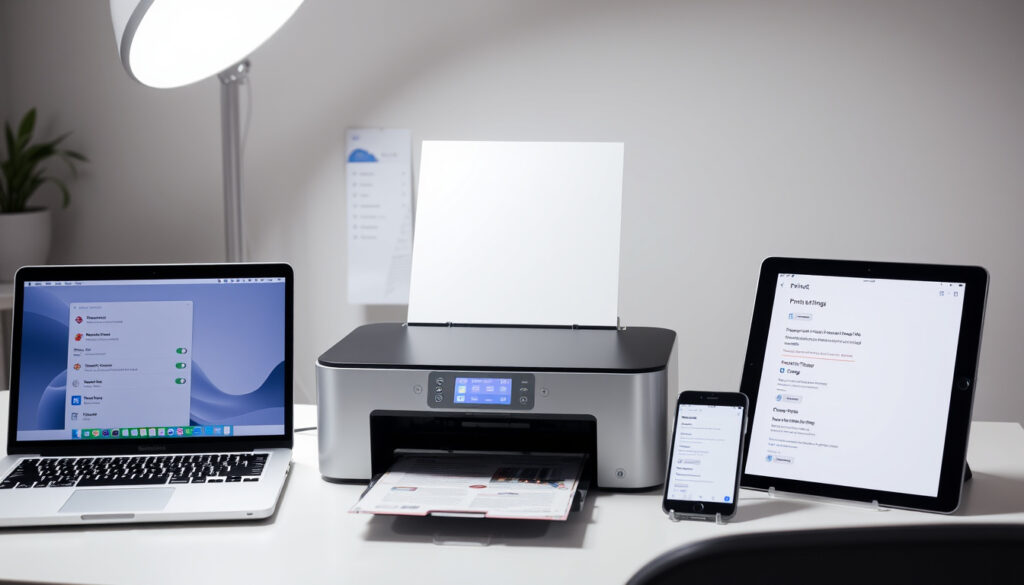
How to Change Default Printer – Guide for Windows, Mac, Mobile
Managing your default printer across different devices and operating systems can streamline your workflow significantly. Whether you’re working on a Windows PC, MacBook, Android tablet, or Chromebook, knowing how to set and maintain your preferred printer saves time and reduces frustration. This guide provides step-by-step instructions for each platform, along with solutions for common issues like printers that reset unexpectedly.
Understanding where to locate printer settings and how to prevent automatic changes ensures your documents reach the correct device every time. The process varies considerably between operating systems, with some platforms offering more automated management than others.
Throughout this article, we’ll walk through the specific steps for Windows 11 and 10, macOS, Android, and Chrome OS. We’ll also address troubleshooting scenarios that users frequently encounter, from the notorious “Let Windows manage my default printer” setting to app-specific print dialogs that can override your system preferences.
How to Change Default Printer on Windows 11 and 10
Windows offers multiple pathways to configure your default printer, with the Settings app being the most direct route for modern systems. Before making changes, users should understand that Windows includes an auto-management feature that can automatically switch the default printer based on recent usage patterns. Disabling this feature is essential for maintaining permanent control over your printer selection.
Quick Overview: Setting Your Default Printer in Windows
Key Insights for Windows Printer Management
- Disable “Let Windows manage my default printer” to prevent automatic changes to the last-used device
- Both Windows 11 and Windows 10 share nearly identical navigation paths through the Settings app
- The Control Panel alternative remains available for users preferring the classic interface
- Chrome browsers may require additional configuration to respect your system default
- Printer drivers should be kept updated for optimal performance and compatibility
- Network printers may temporarily appear offline, but remain available once reconnected
- Windows 10 support ended October 14, 2025, making Windows 11 the recommended platform for ongoing updates
Printer Settings Comparison Across Windows Versions
| Setting Aspect | Windows 11 | Windows 10 | Notes |
|---|---|---|---|
| Primary Path | Settings > Bluetooth & devices > Printers & scanners | Settings > Devices > Printers & scanners | Navigation slightly reorganized in Windows 11 |
| Auto-Management Toggle | Under Printer preferences | Under Printer preferences | Must disable for permanent default |
| Control Panel Access | Hardware and Sound > View devices and printers | Hardware and Sound > View devices and printers | Still functional in both versions |
| Set as Default Button | “Set as default” button next to printer name | Manage > Set as default | Location varies slightly |
| Add Printer Option | Add a printer button if missing | Add a printer button if missing | Same functionality both versions |
| Test Page Printing | Available via printer context menu | Available via printer context menu | Helps verify correct selection |
Step-by-Step Instructions for Windows 11
The most reliable method for changing your default printer on Windows 11 involves navigating through the modern Settings interface. This approach gives you direct control without interference from automated management features.
- Open the Start menu and select Settings
- Navigate to Bluetooth & devices in the left sidebar
- Click on Printers & scanners to access printer management
- Locate Printer preferences near the top of the page
- Find the toggle labeled “Let Windows manage my default printer” and turn it Off
- Select your preferred printer from the available list of installed devices
- Click the Set as default button positioned next to your chosen printer name
- A checkmark or “Default” status will appear, confirming your selection
- Optionally print a test page to verify the configuration is working correctly
For Windows 10 users, the path follows an almost identical sequence. Open Start > Settings > Devices > Printers & scanners, then follow steps 4 through 9 above. The Windows 10 interface uses Manage > Set as default rather than a direct button placement.
Alternative Method: Control Panel
Users who prefer the traditional Windows interface can manage printer defaults through the Control Panel. This method works identically on both Windows 10 and Windows 11.
- Open the Control Panel from the Start menu or search bar
- Navigate to Hardware and Sound
- Click on View devices and printers
- Locate your target printer in the list of installed devices
- Right-click the printer to open the context menu
- Select Set as default printer
- Confirm the action if prompted about disabling auto-management
The “Let Windows manage my default printer” setting is enabled by default on fresh Windows installations. When active, Windows automatically designates whichever printer you used most recently as the new default. This behavior often surprises users who have carefully selected a specific printer for specific tasks like photo printing or document output.
How to Change Default Printer on Mac and MacBook
macOS handles printer management through System Settings, with a straightforward interface that allows users to designate their preferred printing device. The process differs from Windows primarily in terminology and navigation location rather than conceptual approach.
Setting Your Default Printer on macOS
Apple’s macOS consolidates hardware management within System Settings, making printer configuration accessible alongside other device preferences. The interface has remained relatively consistent across recent macOS versions, including Sonoma and later releases.
- Open System Settings from the Apple menu
- Select Printers & Scanners from the sidebar
- Browse the list of installed printers on your Mac
- Click on your desired printer to highlight it
- Look for the Set as Default option and click it
- The selected printer will now display a default indicator
For users with multiple printers, macOS allows quick switching between devices without permanently changing the default. Right-clicking on a printer in the list provides additional options for removing devices or adjusting queue preferences.
Addressing macOS Printer Issues
When your default printer selection doesn’t persist or applications continue using a different printer, several factors may be responsible. Adobe applications and other third-party software sometimes maintain their own print settings that override system defaults.
Printer queue auto-detection can also interfere with your intended selection. Some printer drivers include features that automatically switch to the first available printer when your preferred device appears offline. Disabling these features within the printer’s queue settings often resolves the inconsistency.
Before troubleshooting, verify that your printer shows as “Ready” or “Idle” status in the Printers & Scanners list. Printers displaying offline status may be automatically bypassed by macOS in favor of available alternatives. Reconnecting the printer to your network or USB connection typically restores full functionality.
Fix Default Printer Keeps Changing or Won’t Set
One of the most frequently reported printer issues involves the default selection resetting without user intervention. This problem occurs across all operating systems and stems from several common causes that can be systematically addressed.
Understanding the Auto-Reset Behavior
The primary culprit behind default printer resets on Windows is the “Let Windows manage my default printer” feature. When enabled, Windows monitors your printing activity and automatically updates the default printer to match your most recent usage. This automated approach benefits users who frequently switch between different printers at different locations, but frustrates those who need consistent default behavior.
Location changes can trigger automatic resets when this feature is active. Moving between home and office networks, or connecting to different Wi-Fi networks, causes Windows to interpret the environment change as a reason to reassign the default printer based on proximity and recent history.
Resolving Persistent Reset Issues
The solution for automatic resets begins with disabling the auto-management toggle. On Windows 11, this option resides under Settings > Bluetooth & devices > Printers & scanners > Printer preferences. Turning this feature Off prevents future automatic changes and preserves your manual selection.
After disabling auto-management, restart any applications that were running during the change. Some programs cache printer information at launch and may continue using the previous default until restarted or rebooted.
Ensuring your printer appears in the device list is essential. If your intended default printer has been removed or is experiencing connection issues, Windows may automatically select a different printer as a fallback. Reinstall the printer through the Add a printer option if it has been removed from the system.
Google Chrome maintains its own print settings that may override your system default, frequently defaulting to “Save as PDF” regardless of your Windows or macOS printer selection. To correct this behavior, access Chrome’s print dialog and manually select your preferred printer. For persistent issues, typing chrome://flags/#use-oop-printing in the address bar and adjusting the Out-of-Process Printing flag may enforce system default compliance.
Additional Troubleshooting Steps
When printer selection continues to reset despite disabling auto-management, driver updates often provide resolution. Outdated or corrupted printer drivers can cause unexpected behavior, including inability to maintain default status. Visiting your printer manufacturer’s website and downloading the latest driver for your specific model and operating system version typically resolves these edge cases.
Network connectivity issues may also trigger default printer changes, particularly for wireless printers. When a network printer becomes temporarily unavailable, the operating system may switch to an available alternative. Maintaining stable network connections or using a USB-connected printer can eliminate this variable from troubleshooting.
Change Default Printer on Android, Chromebook, and Other Devices
Mobile and alternative platforms handle printing differently than desktop operating systems, often relying on cloud-based solutions or manufacturer-specific applications rather than system-level printer defaults.
Android Device Printing
Android does not maintain a traditional “default printer” concept in the same manner as desktop operating systems. Instead, Android uses a proximity-based printing system that discovers and displays nearby printers when you initiate a print job from any application.
Access printer settings through Settings > Connected devices > Connection preferences > Printing > Default services. From here, you can manage installed print services, which typically include Mopria-certified services for broad printer compatibility or manufacturer-specific apps for brand-exclusive features.
The deprecation of Google Cloud Print has shifted Android printing toward Mopria and vendor-specific solutions. If your printer supports Mopria (most modern printers do), the standard Android print service should discover and enable printing without additional software installation.
Chrome OS and Chromebook Printing
Chrome OS historically relied on Google Cloud Print for printing functionality, but this service has been phased out. Modern Chromebooks now use a CUPS (Common Unix Printing System) backend similar to Linux distributions, with print management accessible through system settings.
To set your default printer on Chrome OS, navigate to Settings > Advanced > Printing > Printers. From this interface, you can manage installed printers and designate a default device for future print jobs. The system will remember your selection across sessions and application launches.
When Chrome continues selecting “Save as PDF” instead of your intended printer, ensure that your system default is properly configured through the Printers settings panel. Additionally, verifying that the correct printer appears in Chrome’s own print preview dialog addresses most application-level overrides.
Advanced troubleshooting on Chrome OS may involve the Crosh shell for accessing system-level diagnostics. Commands like crosh> shell> lpstat display current print queue status and can help identify whether the system recognizes your installed printers. Restarting the Chrome OS device or resetting the print spooler often resolves temporary detection failures.
Regardless of the operating system, app-specific print dialogs can sometimes override system defaults. If your selected printer consistently fails to appear in certain applications, check that application’s own print settings menu. Adobe products, Microsoft Office applications, and specialized software often maintain independent printer preferences that supersede system-level configurations.
Evolution of Default Printer Settings in Windows
Printer management in Windows has undergone significant changes across operating system generations, reflecting shifts in user expectations and hardware connectivity patterns.
- Windows XP/Vista/7 Era: Printer defaults were set exclusively through the Control Panel’s “Devices and Printers” applet, with no automatic switching features
- Windows 8 Introduction: The Settings interface began incorporating device management, but Control Panel remained primary for printer configuration
- Windows 10 (2015): Modern Settings app became the recommended interface, introducing the “Let Windows manage my default printer” option for mobile-oriented workflows
- Windows 10 Updates: Periodic interface refinements relocated printer settings between Devices and Bluetooth & devices categories
- Windows 11 (2021): Complete Settings interface redesign placed printer management under Bluetooth & devices with expanded preference controls
- Post-October 2025: Windows 10 support concluded, making Windows 11 the only option for users requiring current driver support and security updates
The introduction of automatic printer management in Windows 10 represented a significant philosophy shift, acknowledging that modern users frequently print from multiple locations and devices. However, this convenience came at the cost of predictability for users who needed consistent default printer behavior.
What We Know and What Remains Uncertain
Several aspects of default printer management are well-established through official documentation and user testing, while other elements depend on specific hardware configurations and software environments.
| Established Information | Variables and Uncertainties |
|---|---|
| The “Let Windows manage my default printer” toggle controls automatic printer switching on Windows | Specific driver behaviors vary significantly between printer manufacturers |
| Chrome browser maintains independent print settings that may override system defaults | Third-party applications sometimes cache printer selections in unpredictable ways |
| Disabling auto-management prevents automatic default printer changes on Windows | Network printer detection timing differs across router configurations |
| macOS and Chrome OS provide system-level default printer controls | Android lacks true default printer functionality due to its proximity-based printing model |
| Test page printing verifies correct printer selection across all platforms | Printer firmware updates occasionally introduce unexpected default behavior changes |
After making changes to your default printer, always print a test page to confirm that your selection has been properly registered. Some applications require a restart or even a full system reboot before recognizing updated printer preferences, particularly after disabling auto-management features.
Why Default Printer Settings Matter
The ability to set and maintain a default printer directly impacts daily productivity for anyone who regularly prints documents. Consider the scenario of a home office user with both an inkjet printer for color documents and a laser printer for high-volume black-and-white output. Without reliable default printer control, the system might automatically switch between these devices based on the most recent print job, forcing the user to repeatedly select the correct printer manually.
In shared environments like small offices or coworking spaces, default printer management becomes even more critical. Users may need to print sensitive documents to a specific device while ensuring that accidental prints don’t route to the wrong printer. The consequences of misdirected prints range from minor inconveniences to serious privacy concerns depending on the document content.
Mobile and cloud-based workflows add another layer of complexity. When printing from smartphones, tablets, or cloud applications, the system’s understanding of “default” may differ from traditional desktop assumptions. Proximity-based printing on Android and Chrome OS means that the “default” is often contextually determined rather than pre-configured, requiring users to adapt their expectations to each platform’s paradigm.
Windows 10 support ended October 14, 2025. Users still running Windows 10 should plan an upgrade to Windows 11 to continue receiving security updates and driver compatibility improvements for their printers and other hardware.
— Microsoft Support Documentation
Summary and Next Steps
Setting your default printer requires different approaches depending on your operating system, with Windows offering the most robust configuration options through both Settings and Control Panel interfaces. macOS, Chrome OS, and mobile platforms each provide their own methods, though the underlying concepts remain consistent: disable automatic management features, select your preferred device, and verify the change through a test print.
For users experiencing persistent issues with default printer stability, addressing the root causes systematically often proves more effective than repeatedly resetting the configuration. Updating drivers, maintaining network connectivity, and ensuring that auto-management features remain disabled collectively contribute to reliable printer behavior over time.
Beyond setting defaults, exploring additional printer management topics can further optimize your printing workflow. Learning how to manage print queues, configure wireless printer setup, or troubleshoot common printing errors provides a comprehensive foundation for handling printer-related challenges as they arise.
For related productivity tools and workflow optimization strategies, consider exploring our guides on Out of Office Message – Setup Guide for Gmail and Outlook and Best Apps for Focus and Concentration – Top 2024 Picks Tested for additional productivity enhancement resources.
Frequently Asked Questions
My Mac won’t keep the default printer I select. What should I do?
Check whether your printer shows “Ready” status in System Settings. Printers with offline status may be bypassed automatically. Also verify that third-party applications like Adobe software aren’t maintaining their own print preferences that override your system selection.
Why does my default printer keep changing back to a different device?
The most common cause is the “Let Windows manage my default printer” setting being enabled. Navigate to Settings > Printers & scanners > Printer preferences and turn this option Off to prevent automatic changes based on recent usage patterns.
How do I set a default printer permanently in Windows 10?
Open Settings > Devices > Printers & scanners, turn off “Let Windows manage my default printer,” select your preferred printer, and click Set as default. This configuration persists until you manually change it or reinstall Windows.
Can I change the default printer from an Android phone?
Android doesn’t maintain a traditional default printer. Instead, the system discovers nearby printers when you initiate a print job. For consistent printer selection, use your printer manufacturer’s app or ensure Mopria-certified services are enabled in Settings > Connected devices > Printing.
Chrome keeps defaulting to “Save as PDF” instead of my printer. How do I fix this?
Ensure your system default printer is properly configured first. In Chrome, access the print dialog and manually select your preferred printer. For persistent issues, type chrome://flags/#use-oop-printing in the address bar and adjust the printing flag settings.
What’s the alternative method for changing default printers on Windows?
Open Control Panel > Hardware and Sound > View devices and printers, right-click your desired printer, and select “Set as default printer.” Confirm the action if prompted about disabling automatic printer management.
How do I access printer settings on a Chromebook?
Navigate to Settings > Advanced > Printing > Printers to manage installed devices and set your default. Chrome OS uses a CUPS-based printing system that remembers your preferences across sessions and reboots.
More related posts
 Jelly Roll Weight Loss: 160 Pounds Down, Mounjaro Rumors
 When to Worry About Low Heart Rate: Thresholds & Signs
 Is a Cholesterol Level of 5.7 High? Risks & Next Steps
 Dublin to Belfast Train: Direct Service, Fares & Times
 FA Cup Draw Today: Time, TV Channel & Live Stream
 Joanne Cantwell Husband Shay: Family Life and Career Guide
 Pat Kenny Signs Off: Weekday Show Ends, Weekend Role Begins
 Ryder Cup Envelope Rule: How It Works, History & 2025 Controversy