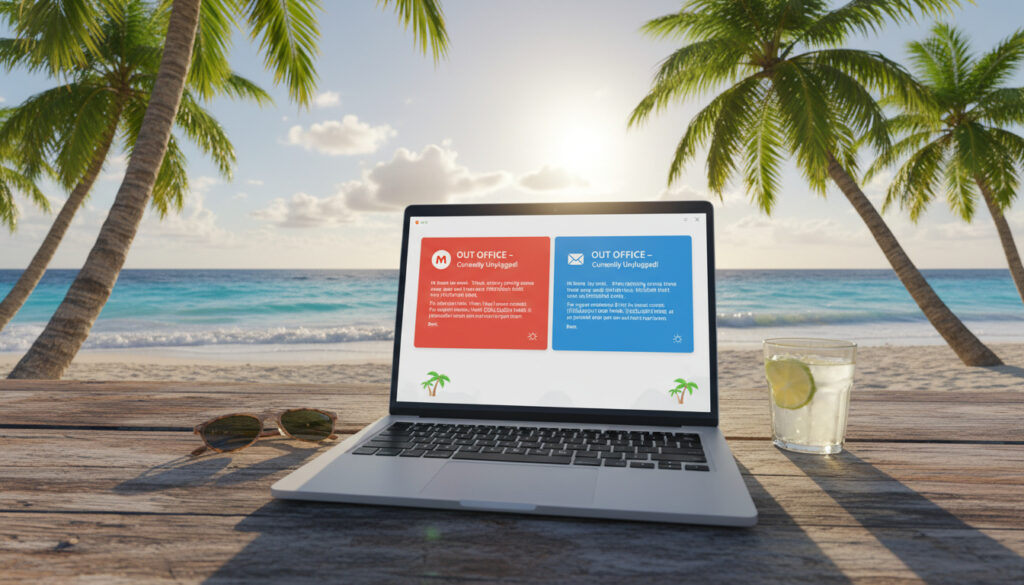
Out of Office Message – Setup Guide for Gmail and Outlook
Email dominates professional communication, with 62.86% of business professionals relying on it as their primary channel. The average white-collar worker processes approximately 40 office emails daily, making auto-responders essential for managing expectations during absences.
An out-of-office message serves as an automated notification that informs senders of your temporary unavailability while directing urgent inquiries to appropriate alternatives. Configuration takes under two minutes across major platforms, yet the impact on professional relationships extends far beyond the duration of your absence.
How to Set Up an Out of Office Message
Definition
Automated email response activated during temporary absence to manage sender expectations and prevent workflow delays.
Benefits
Maintains professional relationships, ensures operational continuity, and reduces sender anxiety about message receipt.
When to Use
Vacations, business travel, conferences, medical leave, or any period of limited email accessibility.
Quick Tips
Keep under 100 words, verify alternative contacts before listing them, and enable exactly when coverage begins.
- Setup requires under two minutes on desktop and mobile platforms
- Gmail sends auto-replies at 4-day intervals automatically to prevent flooding
- Outlook allows distinct messages for internal and external recipients
- Professional messages should contain 3-5 sentences maximum
- 62.86% of professionals prefer email communication over other channels
- Filters combined with templates enable audience-specific messaging in Gmail
- Mobile configuration follows similar patterns to desktop interfaces
| Aspect | Detail | Source |
|---|---|---|
| Setup Duration | Under 2 minutes | Get Inbox Zero |
| Ideal Length | 3-5 sentences | Superhuman |
| Daily Email Volume | 40 emails per worker | Exclaimer |
| Gmail Interval | 4 days | Superhuman |
| Email Preference | 62.86% business professionals | Exclaimer |
| Mobile Access | iPhone and Android supported | Get Inbox Zero |
Configuring Gmail
Navigate to Settings > See all settings > General > Out-of-Office AutoReply. Enable the feature, define your date range, compose your message, and optionally restrict responses to contacts only. Desktop interfaces provide full functionality through the web application.
On mobile devices, access through Menu > Settings > Vacation responder on both iPhone and Android platforms according to inbox management specialists.
Setting Up Outlook
Select File > Automatic Replies (Out of Office), then activate Send automatic replies. Define specific date ranges and create separate messages for internal and external recipients. Official Microsoft documentation outlines these steps for Windows clients.
Alternative methods include creating custom templates saved as .oft files and applying them through email rules for enhanced control as documented by Microsoft support.
Advanced Filtering Techniques
Gmail’s vacation responder automatically excludes spam and mailing lists while sending replies at 4-day intervals. For sophisticated audience segmentation, combine Filters with Templates (formerly Canned Responses). Enable Templates in Settings > Advanced, create distinct messages for different audiences, then configure filters to select Send template as the action. Note that filters process new messages only.
What Makes a Good Out of Office Message? Examples and Templates
Executive-Level Templates
Subject: Out of Office
Hello,
Thank you for your email. I am currently out of the office on business until [Return Date]. During this period, I will have limited access to my emails.
For urgent matters, please contact [Colleague’s Name] at [Colleague’s Email] or [Colleague’s Phone Number].
I will respond to your email as soon as possible upon my return.
Best regards,
[Your Name]
Source: Superhuman
Project-Specific Routing
Subject: OOO Notification: Returning [Date]
Thank you for your message. I am out of the office and will return on [insert date].
If you’re emailing about the following projects, here are alternative contacts you can reach out to in my absence:
[Project Name A]: [Contact Name A]
[Project Name B]: [Contact Name B]
[Project Name C]: [Contact Name C]
Otherwise, I will respond to you when I return.
Source: Superhuman
Concise Professional Formats
Subject: Out of office until [Date]
Hi,
Thanks for your email. I’m out of the office until [Day, Date] and will respond as soon as I can after I return.
If your message is urgent, please contact [Name] at [email].
Best,
[Your Name]
Source: Inbox Zero
Professional templates require 3-5 sentences including: a clear subject line, acknowledgment of receipt, return date, alternative contact for urgent matters, and professional closing. Length constraints prevent information overload while maintaining courtesy.
How to Write an Effective Out of Office Message
Core Components
Effective messages contain five essential elements: a descriptive subject line indicating unavailability, immediate acknowledgment of the sender’s effort, specific return dates rather than vague timeframes, vetted alternative contacts for urgent escalation, and a professional closing that maintains brand consistency. Avoid overpromised response times or committing colleagues without prior agreement.
Optimal Length and Structure
Restrict content to 3-5 sentences maximum. Extended explanations waste recipient time and increase mobile scrolling friction. Place critical information—return dates and alternative contacts—within the first two sentences to accommodate preview panes and notification previews on smartphones.
Critical Mistakes to Avoid
Never include personal travel details, specific locations, or family information that compromise security. Avoid guaranteeing response times within 24 hours of return unless operationally feasible. Do not assign colleague responsibilities without explicit consent. Security protocols advise against sharing sensitive operational details in auto-responses.
Automatic replies expose information to anyone who emails you, including potential threat actors. Omit specific locations, accommodation details, or colleague contact information that could facilitate social engineering attacks. Best practices emphasize minimal disclosure while maintaining utility.
Out of Office Messages for Specific Scenarios
Extended Vacation Coverage
For absences exceeding one week, specify alternative contacts by project or department. List colleagues with direct responsibility for ongoing initiatives rather than general departmental addresses. Confirm coverage arrangements verbally before listing individuals in your auto-reply.
Business Travel Notifications
When traveling for conferences or client meetings, indicate limited rather than zero availability if checking email intermittently. Specify time zone differences affecting response capabilities. Provide mobile contact methods only for truly urgent operational matters. For additional travel logistics resources, consult the 261 Bus Timetable Cork – Schedules, Stops and Frequencies.
Gmail’s vacation responder sends automatic replies at 4-day intervals and automatically excludes spam and mailing lists. This default behavior prevents inbox flooding but means senders may not receive immediate confirmation of your absence during extended trips.
Timeline: Managing Out of Office Communication Lifecycle
- Pre-Departure (48-24 hours before): Notify direct team members and critical stakeholders personally. Set calendar boundaries visible to colleagues. Prepare project handoff documentation.
- Activation (Departure day): Enable auto-responder exactly when coverage begins. Verify alternative contacts are available and informed. Test messages by sending yourself an email from external account.
- Active Monitoring (During absence): Check delegated contact performance if possible. Adjust filters if specific projects require urgent escalation paths. Maintain minimal email visibility if on-call.
- Return Protocol (First day back): Disable auto-responder immediately upon return. Review messages flagged as urgent by alternative contacts. Prioritize responses based on sender and timestamp.
Established Facts and Unclear Information
| Established Information | Information Requiring Further Research |
|---|---|
| Setup takes under 2 minutes on major platforms | 2025-specific trends in auto-responder design |
| 3-5 sentences optimal for professional messages | AI-generated out-of-office message effectiveness |
| Gmail sends replies at 4-day intervals | Comparative studies from Harvard Business Review or Gartner |
| 62.86% of professionals prefer email communication | Specific templates for parental or maternity leave |
| Outlook supports internal/external message differentiation | Automated meeting management integration capabilities |
| 40 emails daily average for white-collar workers | Humor-based template performance metrics |
Why Out of Office Messages Matter in Modern Work
Email volume continues intensifying as hybrid work models blur availability boundaries. With 62.86% of professionals relying on email and processing approximately 40 messages daily, clear absence notifications prevent workflow bottlenecks. Auto-responders function as communication infrastructure, redirecting time-sensitive matters to available personnel while protecting focus time for the absent professional.
The mechanism serves dual purposes: operational continuity and relationship preservation. Senders receive immediate acknowledgment rather than silence, reducing anxiety about message receipt. Organizations maintain service levels despite individual unavailability. Rapid configuration capabilities mean these benefits require minimal administrative investment.
Expert Perspectives and Source Documentation
Gmail’s vacation responder sends automatic replies at 4-day intervals and automatically excludes spam and mailing lists, preventing inbox flooding while maintaining sender notification.
— Superhuman Blog, Gmail Out of Office Guide
Email remains the primary business communication method, with 62.86% of business professionals preferring email for business purposes over alternative channels.
— Exclaimer Email Signature Handbook
Out-of-office messages can be configured in under 2 minutes on both desktop and mobile platforms, making immediate implementation feasible for unexpected absences.
— Get Inbox Zero
Key Takeaways for Professional Absence Management
Crafting effective out-of-office messages requires balancing transparency with security, efficiency with courtesy. Implement configurations across Gmail and Outlook using the specific pathways outlined above, maintaining 3-5 sentence limits while providing alternative contacts. For comprehensive research methodologies applicable to professional tool selection, review the Fisher Price Little People – History Safety Best Sets Guide.
Frequently Asked Questions
How long should an out of office message be?
Professional out-of-office messages should contain 3-5 sentences. This length accommodates mobile preview panes while providing essential information: return date and alternative contacts.
Can I set different out of office messages for internal and external recipients?
Outlook supports distinct messages for internal and external recipients through the Automatic Replies settings. Gmail requires combining Filters with Templates (Canned Responses) to achieve similar segmentation.
How often does Gmail send automatic replies to the same sender?
Gmail’s vacation responder sends auto-replies at 4-day intervals to the same recipient. It automatically excludes spam and mailing lists from receiving responses.
What information should never appear in an out of office message?
Avoid specific travel locations, accommodation details, personal family information, and unconfirmed colleague commitments. Never include sensitive operational data or promise specific response timeframes.
How quickly can I activate an out of office reply?
Configuration takes under 2 minutes on both desktop and mobile platforms for Gmail and Outlook, allowing immediate activation for unexpected absences.
Do out of office messages work on mobile email apps?
Gmail offers vacation responder settings on iPhone and Android through Menu > Settings > Vacation responder. Outlook mobile supports similar functionality depending on organizational Exchange policies.
Can I create custom templates for recurring use?
Outlook supports .oft template files applied through email rules. Gmail users can save Templates (formerly Canned Responses) in Settings > Advanced for repeated deployment with manual or filtered activation.
Are funny or creative out of office messages recommended?
Current professional guidelines do not establish standards for humorous templates. Industry research focuses on clarity and utility rather than creative variations, suggesting conservative approaches for most business contexts.
More related posts
 What Is the Best Snack Idea? Healthy Dietitian Picks
 Is Three Network Down Today Ireland? Live Status & Map
 The Best Apps for Work in 2026: Top Productivity Tools Tested
 When to Worry About Low Heart Rate: Thresholds & Signs
 The Shelbourne Afternoon Tea: Price, Menu, Time & Booking
 Real Madrid vs Liverpool: History, Finals, and How to Watch
 Hotel Costa Malaga by Pierre & Vacances – Reviews Location Guide