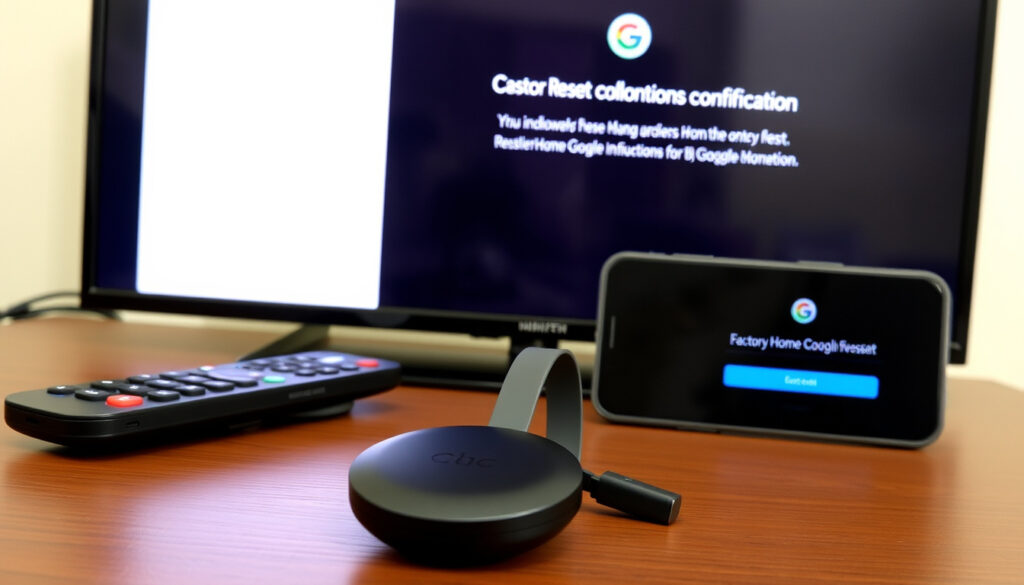
How to Factory Reset Chromecast: 3 Methods for All Generations
Few things feel more helpless than a Chromecast stuck on the wrong Wi‑Fi with the remote nowhere in sight. If your model has a physical reset button, you don’t need the remote, and you don’t need the app, to start a factory reset. Google’s official reset documentation says to hold that button while the Chromecast stays plugged into the TV and powered on, so the only thing you really need to know is which Chromecast generation you own.
Reset methods: Physical button or Google Home app · Models with physical button: Legacy Chromecast models · LED signal to release: Solid white · Official doc: Google Support
- For Chromecast models with a physical button, you hold that button while the device is plugged into the TV and powered on (Google Support).
- The Chromecast must stay powered during the button hold; the reset starts on the device itself, not inside the app (Google Support).
- Google says the LED should become solid white before release on Chromecast models during factory reset (Google Support).
- The Google Home app can factory reset supported Chromecast models from the device’s settings menu (Google Support).
How to factory reset Chromecast without the remote or app
The physical-button route needs neither the remote nor the Google Home app.
- Keep the Chromecast plugged into the TV and powered on.
- Press and hold the button until the LED becomes solid white, then release (Google Support).
Factory reset using the Google Home app
When the physical reset button is hard to reach or not present, the Google Home app can reset a supported Chromecast from the device’s settings.
- Open device settings and choose factory reset (Google Support).
No Google Home app required if you use the button or the on‑screen menu.
Model-by-model reset guide: which method works on which Chromecast
| Model | Reset method |
|---|---|
| Chromecast (2nd or 3rd gen) | Hold the physical button while powered; release on solid white LED (Google Support). |
| Chromecast Ultra | Same button-hold and white-LED pattern according to third-party coverage (Tom’s Guide). |
| Google TV model | Check for a physical button on the device before assuming the older reset timing applies. |
| Any model with a physical button | No remote or app required for the reset step. |
| Any model without a physical button | The Google Home app becomes the reset path (Google Support). |
“For Chromecast models with a physical button, the device must stay plugged into the TV and powered while the button is held to start a factory reset.”
Google Support
“The LED should become solid white before release on Chromecast models during factory reset.”
support.google.com, support.google.com, tycoonstory.com, soundcore.com, chat.colineal.com, resetlibs.com, bgr.com, lifetips.alibaba.com, support.google.com, allaboutchromecast.com, electronics.alibaba.com
Frequently asked questions
How long do I hold the Chromecast reset button?
Google’s clearest signal is the LED: hold until it becomes solid white, then release. Older guides sometimes describe a fixed number of seconds, but the LED signal is more reliable (Tom’s Guide).
Can I factory reset Chromecast without Wi‑Fi?
Yes for physical-button models, because the reset begins before any Wi‑Fi screen appears. The Google Home app route is the one that needs a network connection (Google Support).
Can I factory reset Chromecast without the Google Home app?
No Google Home app required if you use the button or the on‑screen menu.
What if I don’t have physical access to the Chromecast?
If you don’t have physical access to the device, there is no consumer-available remote wipe path.
What happens after I reset the Chromecast?
The factory reset clears the saved Wi‑Fi settings on the Chromecast, so you reconnect during setup.
Limits of a factory reset
What comes after the factory reset: a clean setup screen, a fresh Wi‑Fi connection, and — on a physical-button model — a way back even when the remote is gone.
More related posts
 Audi Q7 for Sale in Ireland: 2025 Guide – Problems & Reliability
 Sol de Janeiro Gift Set: Best Bundles, Prices & Scents
 Houses for Sale Dundalk: Cheap, Repossessed & 3-Bed Guide
 Arsenal vs Aston Villa Lineups: Gabriel and Timber Return
 When to Worry About Low Heart Rate: Thresholds & Signs
 Richard E. Grant: Biography, Wife, Movies, and Personal Life
 Burnley FC vs Manchester United FC Timeline: History & Finances
 What Date is Easter Sunday 2026? April 5 in Ireland